April 19, 2026
Create Your First Promo Video for Your App in 10 Minutes on iPhone
You need a promo video for your app, but the idea of setting up a computer, learning 3D software, or hiring a designer feels like more work than shipping the app itself.
Here's the thing: you don't need a studio or design skills to make a video that looks professional. You just need the right workflow—and the right tool.
In this guide, I'll walk you through creating your first app demo video from your iPhone, using realistic 3D mockups, smooth animations, and proper lighting that makes your app look like it belongs on the big screen.
Why Promotional Videos Matter for Apps
Before we dive into the how, it helps to understand the why.
Users don't read your app's marketing page. They watch a 30-second video that shows your app in action, then decide whether to download. According to recent data, apps with videos in their App Store listings convert 2.5x better than those without.
A good promo video does three things:
- Shows your app's actual features in context
- Demonstrates the user experience
- Creates emotional connection through visual storytelling
The problem most solo developers face? They can't make these videos without spending hours in complex software or hiring a designer they can't afford.
The Challenge You're Facing
You've probably tried some of these approaches:
Approach 1: Screen recording You record your screen, add some text overlays, and export. The result looks flat. It looks like any other screen recording.
Approach 2: Static screenshots with text You take screenshots of your app, add captions in Canva, and call it a "video." It lacks motion, depth, and polish.
Approach 3: Outsourcing to a designer You find a Fiverr or Upwork designer, explain your app, wait days for revisions, and pay anywhere from $50-$300 per video. Then you realize the design doesn't match your brand.
None of these feel right. The first two don't impress anyone. The third drains your budget and delays your launch.
What you need is a way to create compelling promo videos that:
- Look expensive but cost a fraction of professional production
- Work entirely on your phone (so you're not tethered to your desk)
- Show real 3D depth and lighting, not flat screenshots
- Can be produced quickly enough to iterate and test
The Solution: Mobile-First 3D Mockups
Here's the approach that solves your problem.
Instead of trying to make a video from flat screenshots, you create a 3D scene. You place your app's demo video inside a realistic iPhone model, position the camera, add lighting, and record a few seconds of smooth animation. Export in 4K, and you have a professional promo video.
The magic happens in these three areas:
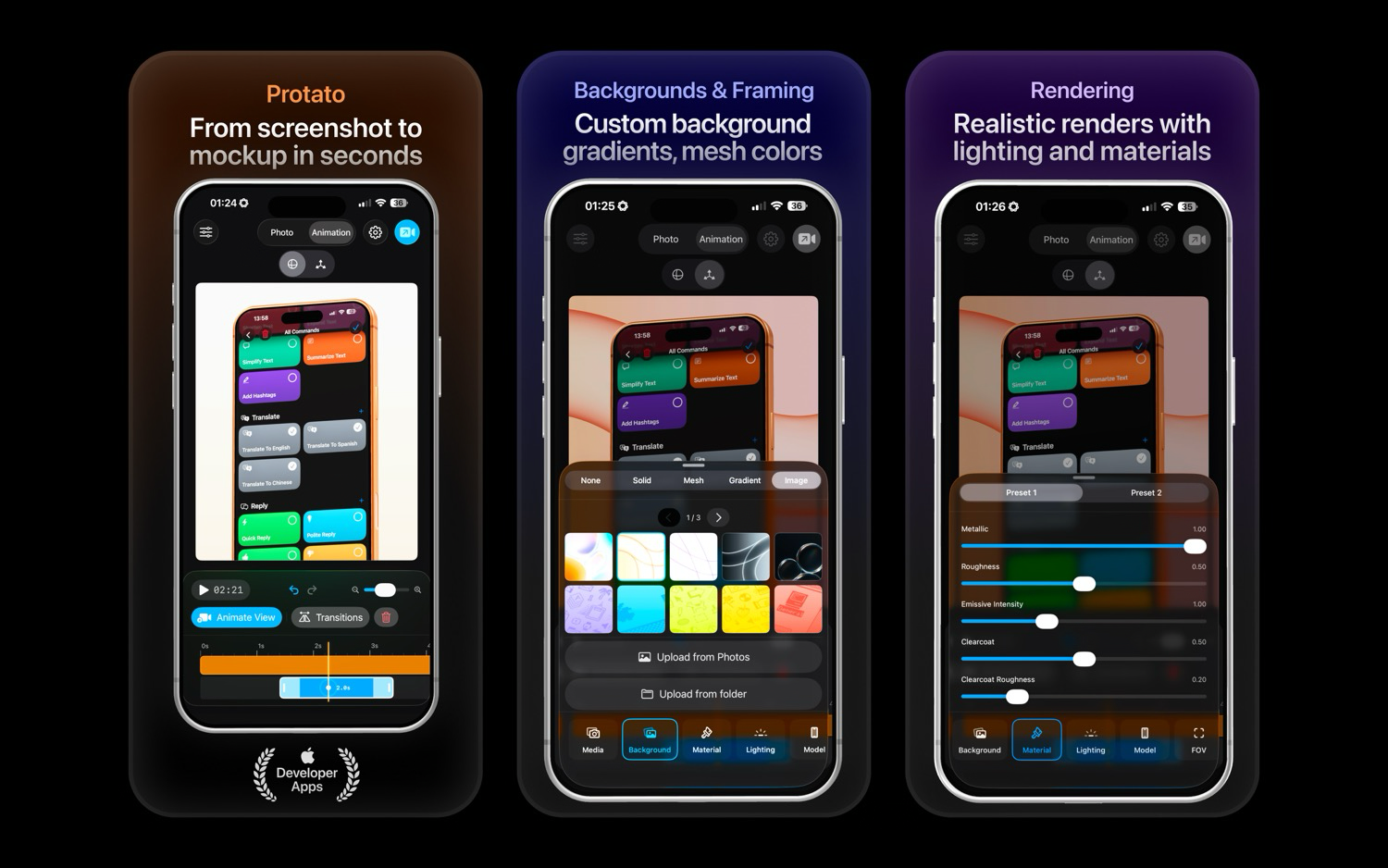
1. Realistic 3D mockups You get actual iPhone models—15 Pro Max, 16 Plus, 17 Air, 17 Pro Max—with realistic glass, metal, and ceramic textures. When you place your video inside the screen, it looks like it's actually running on the device.
2. Studio-quality lighting Studio lighting, dramatic cinematic lighting, or flat lighting—choose a preset that matches your brand. Add reflections and shadows that make the phone feel tangible, not like a flat image.
3. Smooth, controlled animation Rotate the phone to show multiple screens. Zoom in on key features. Pan the camera to draw attention. Keep the movement slow and smooth—just like a polished commercial.
The result? A video that looks like it cost thousands to produce, but you made in minutes from your phone.
How Protato Fits Into Your Workflow
Here's where Protato comes in.
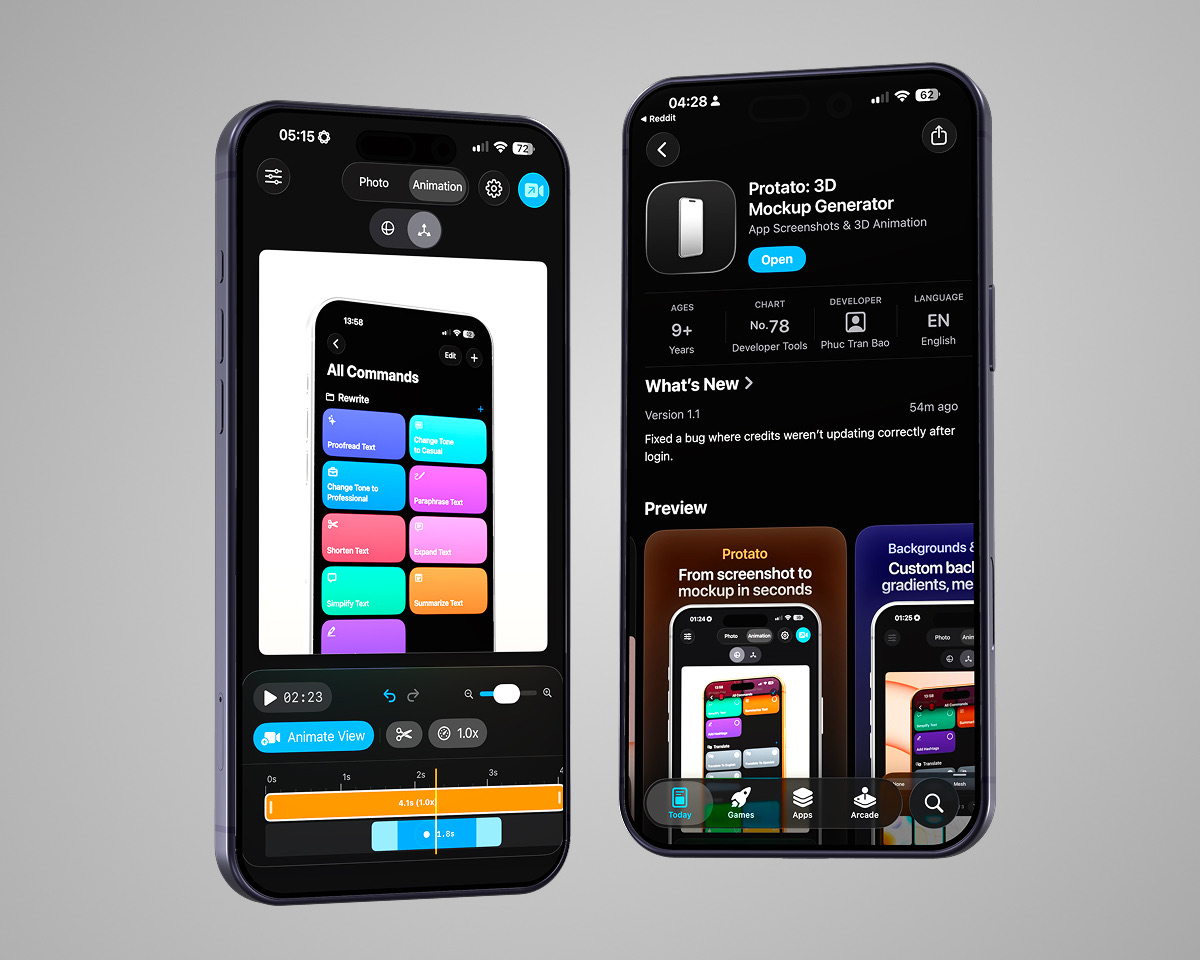
Protato gives you a complete mobile-first workflow for creating these videos:
- Select iPhone models from iPhone 15 Pro Max to 17 Pro Max
- Upload your demo video and see it play inside the screen in real-time
- Choose from three lighting presets—Studio, Dramatic, or Flat
- Animate with smooth rotations, pans, and zooms controlled by simple gestures
- Add backgrounds that match your brand or make the phone stand out
- Export in 4K as video or still images ready for any platform
It works on iPhone, iPad, or Mac, so you can create from anywhere. Your projects auto-save and sync across devices, so you never lose work or need to move files manually.
Start with the free credits to explore the full workflow. Once you see how fast it is to produce polished promo videos, upgrade to a subscription or one-time purchase for unlimited exports.
How to Create Your First Promo Video
Let's walk through the actual workflow.
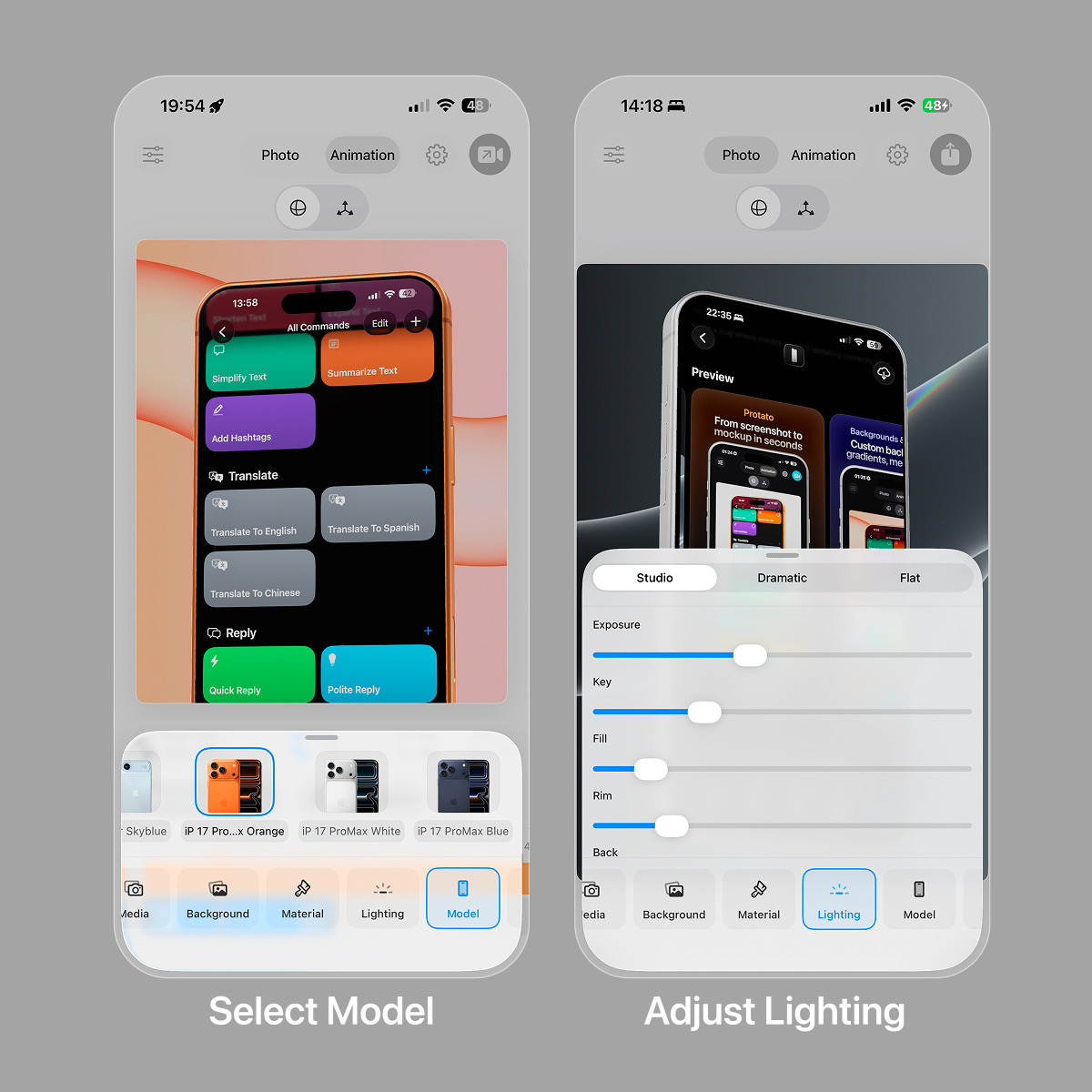
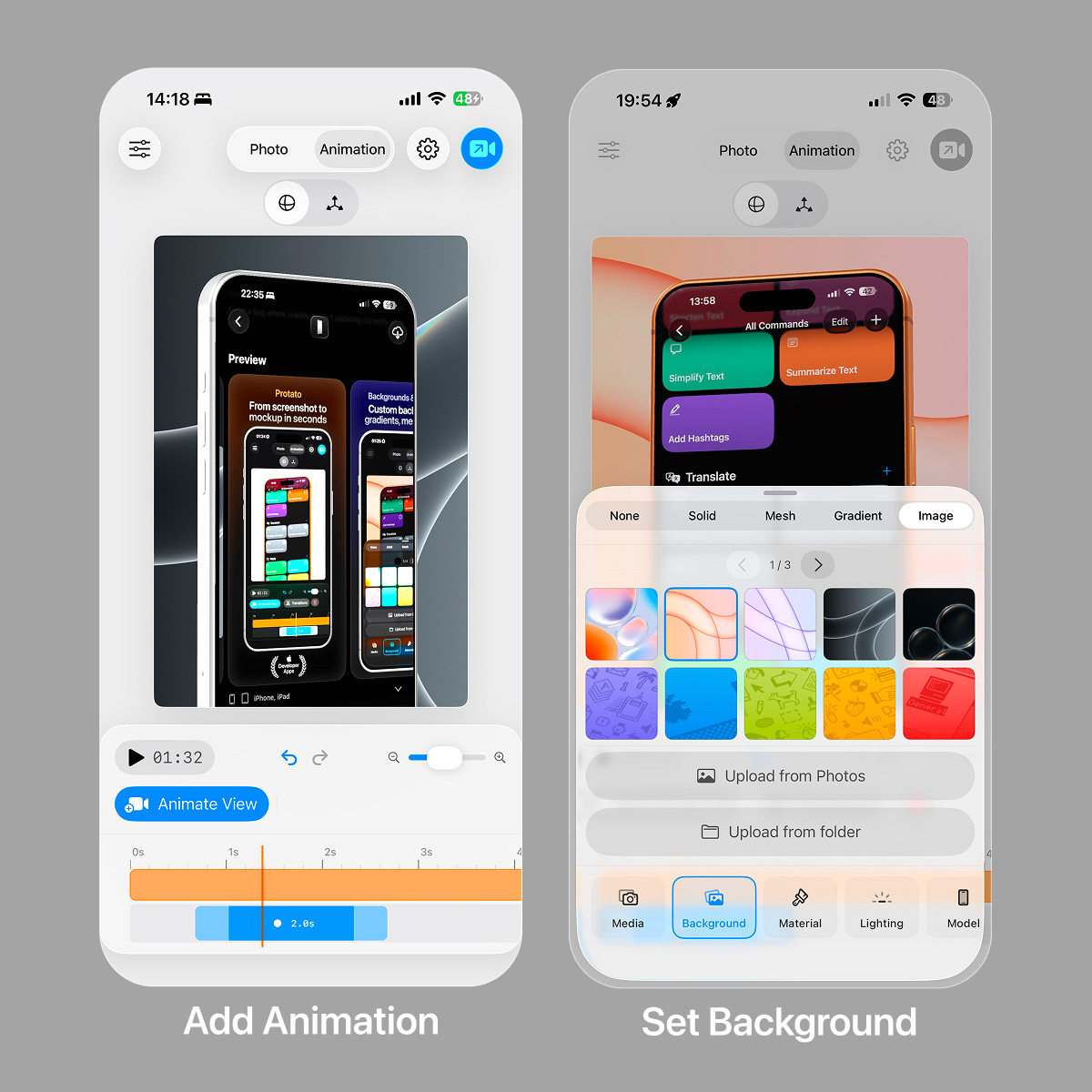
Step 1: Choosing iPhone model with your video inside
Start by choosing an iPhone model that fits your app's style. The 17 Pro Max offers the most screen real estate for showcasing features. The 17 Air is sleek and minimal. 16 Plus gives you a comfortable aspect ratio for vertical content.
Open the app, select your device, and upload your app's demo video. The video plays inside the screen in real-time. Adjust the crop so your key features are centered and clearly visible.
Step 2: Choose the right lighting preset
Lighting makes or breaks the realism. Studio lighting gives you clean, professional-looking images with soft shadows and reflections—great for most apps. Dramatic lighting adds contrast and cinematic flair—perfect for games, creative tools, or anything that benefits from mood. Flat lighting removes shadows entirely, which can look clean but sometimes feels too simple.
Try each preset with your video and see which one makes your app look the best. The right lighting should enhance, not distract.
Step 3: Position and animate
Now it's time to position the phone in 3D space. The key is to keep the camera slow and deliberate. Don't rotate wildly—that makes people dizzy. Don't zoom in and out randomly—that feels amateur.
Good animation choices:
- Pan: Move the phone left to right to show a longer interface
- Rotate: Slowly rotate to show multiple screens from different angles
- Zoom: Ease into key features (a button, a data visualization, a special effect)
Set up one or two smooth movements that tell a simple story: "This app does X, then Y, then Z." Each movement should have a clear purpose.
Step 4: Add background and polish
Your phone is now in 3D space with realistic lighting, but the background matters too. A solid color (like a brand color) keeps the focus on the phone. A gradient adds subtle depth. A custom image can match your app's aesthetic. Or make it transparent and overlay on top of your other marketing materials.
Fine-tune these details until the whole scene feels cohesive. The phone should look like it's floating in a space that makes sense for your app.
Step 5: Export and share
Export in 4K for the highest quality. You'll get both a high-resolution still image and a video file ready for your marketing. Share it on social media, embed it on your website, or include it in your App Store listing.
Repeat the process for different angles, different lighting styles, or different devices. You now have a library of promo materials you can test, iterate, and use across all your channels.
Why This Workflow Works
You might be wondering why this approach is better than the alternatives.
Compared to screen recording: You have control over composition, lighting, and animation. You're not limited to whatever happens to be on your screen. You can frame each shot intentionally, use studio lighting, and add polish that screen recording lacks.
Compared to static screenshots: You add motion, which keeps viewers engaged. The 3D depth creates a sense of immersion that flat images can't match. It feels more like a premium product experience.
Compared to outsourcing: You own the process, the quality, and the timeline. You don't need to explain your app to a designer, wait for revisions, or pay repeated fees for each version. You can iterate on your own timeline, test multiple approaches quickly, and produce content at the speed of your ideas.
The right promo video can change how people perceive your app.
A screen recording shows the interface. A video with a 3D phone model, dramatic lighting, and smooth rotation of different workout screens feels like a premium product that's worth $10/month. The same app, presented differently, gets different results.
A productivity app benefits from clean, minimal lighting. A flat-lit scene with slow pan movements shows the interface clearly, suggesting ease of use. Switch to dramatic lighting with deep shadows, and suddenly the app feels more mysterious and capable.
Your app's personality should inform your video style. What's your brand? What feeling do you want to evoke? Choose lighting, animation, and background that match.
Ready to Create Your First Video
The tools are ready. The workflow is clear. You just need to start.
Open Protato, pick an iPhone model, upload your app's demo video, and try a simple rotation. See how lighting affects realism. Add a slow pan and export your first 4K video.
You'll be surprised at how professional it looks—and how quickly you can iterate and test new approaches.
Your next promo video is just a few taps away.
Felix Tran
Indie Developer & Protato Editorial Lead
Write about everyday workflows. Especially around design, writing, and shipping ideas fast