How to build a multi-device scene with iPhone, iPad, and MacBook.
One device is a screenshot. Multiple devices tell a story. Place iPhone, iPad, and MacBook in the same scene to create ecosystem hero shots, feature comparisons, or product family visuals.
What you'll build
A three-device scene with an iPhone, iPad, and MacBook, each showing different screens, positioned in a balanced composition, exported as a single image.
What you'll use
Device list (add/remove), iPhone 17 / iPad A16 / MacBook Pro 14\" model picker, transform controls, media import per device, camera orbit/pan, still export, IBL (Image-Based Lighting), and lighting presets (Studio, Dramatic, Flat) with per-light sliders.
Multi-device scenes work best on Mac, where the three-column layout gives you full control over each device's position. You can start on iPhone and sync via iCloud.
Step 01
Start with a single device and set your canvas.
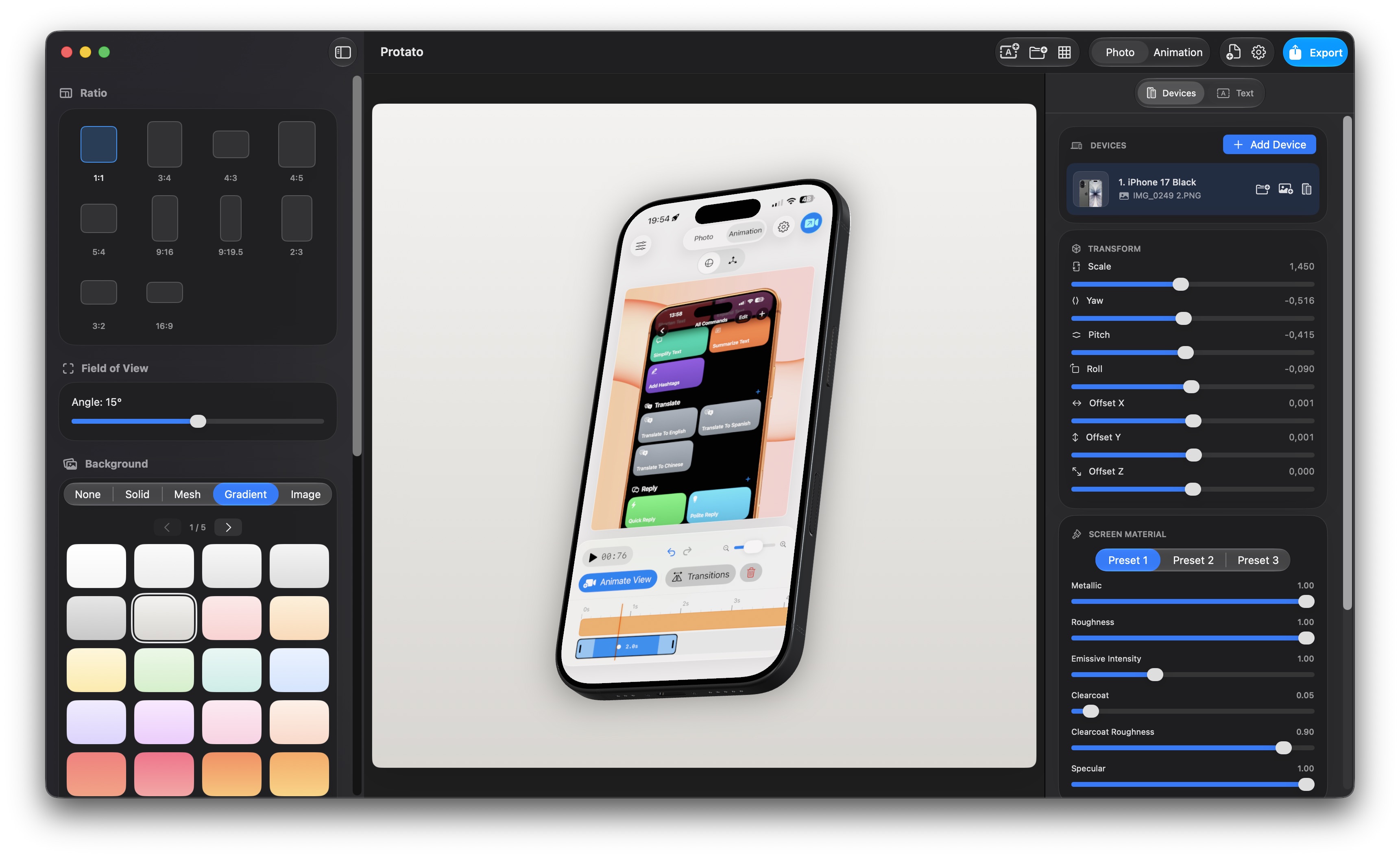
Open Protato and pick your primary device — iPhone 17 Pro Max is a natural starting point, but you can start with any model.
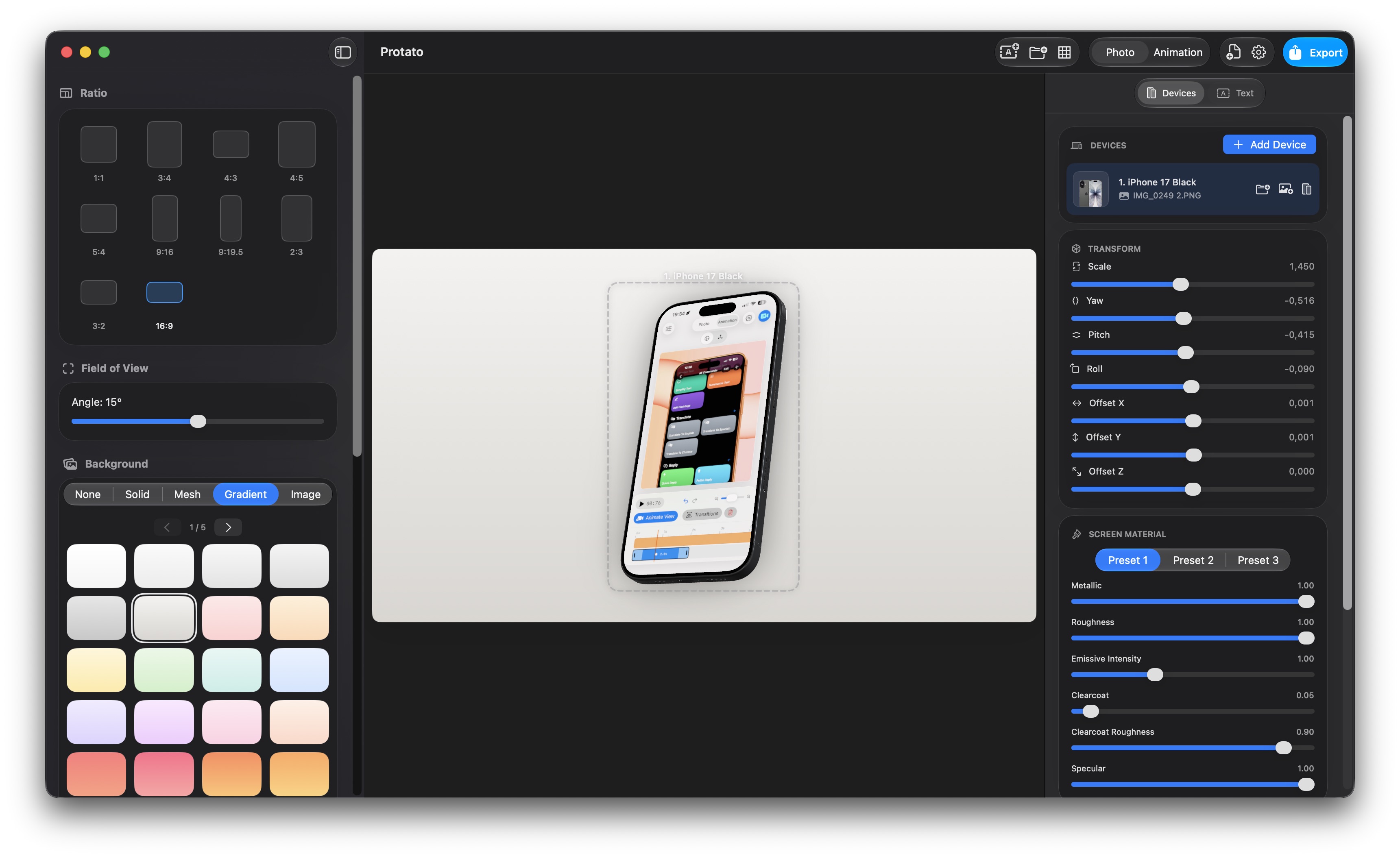
Set the aspect ratio to a wide canvas like 16:9 so you have room to place multiple devices without crowding. Choose a solid or gradient background that gives the scene depth.
Step 02
Add a second and third device to the scene.
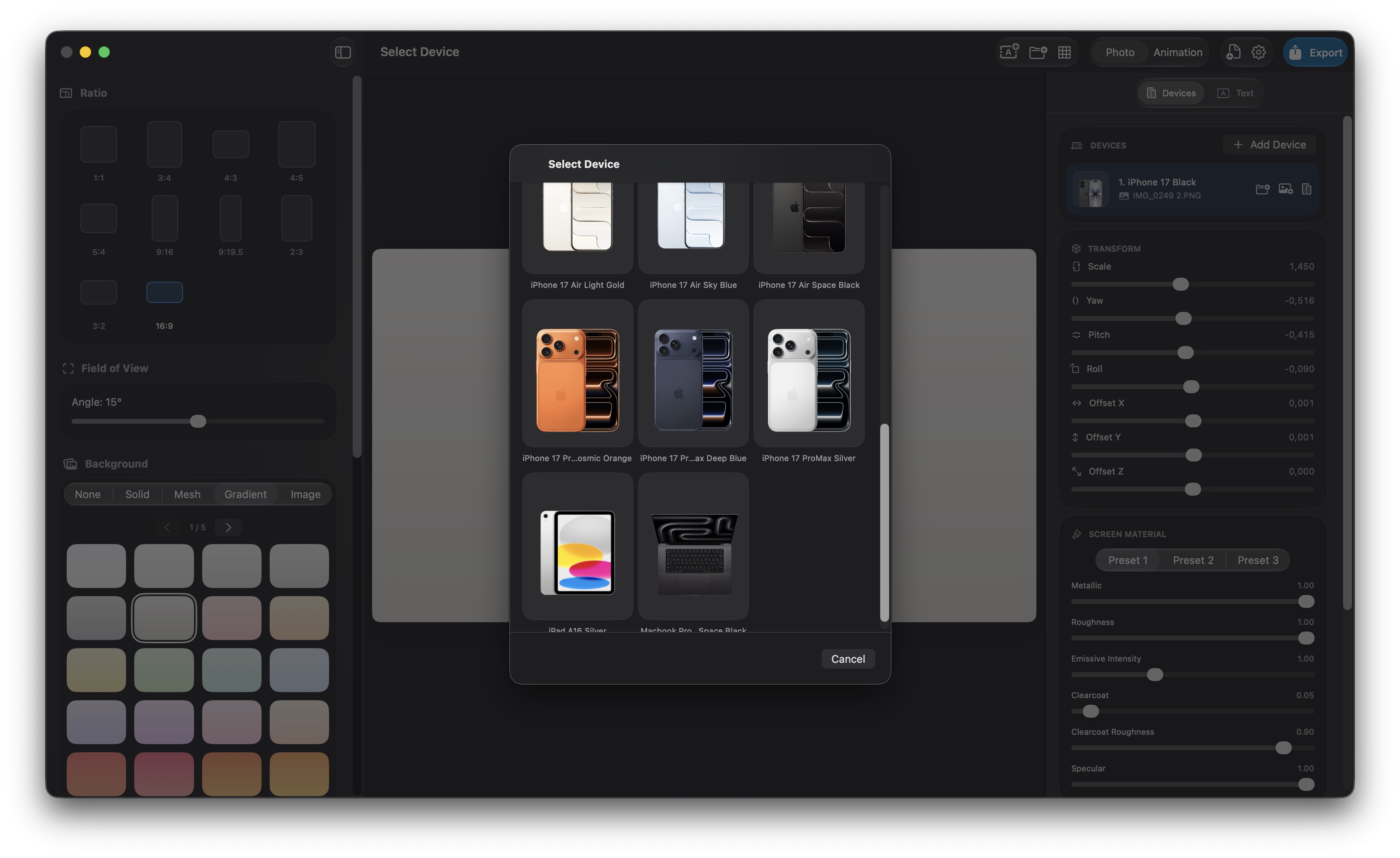
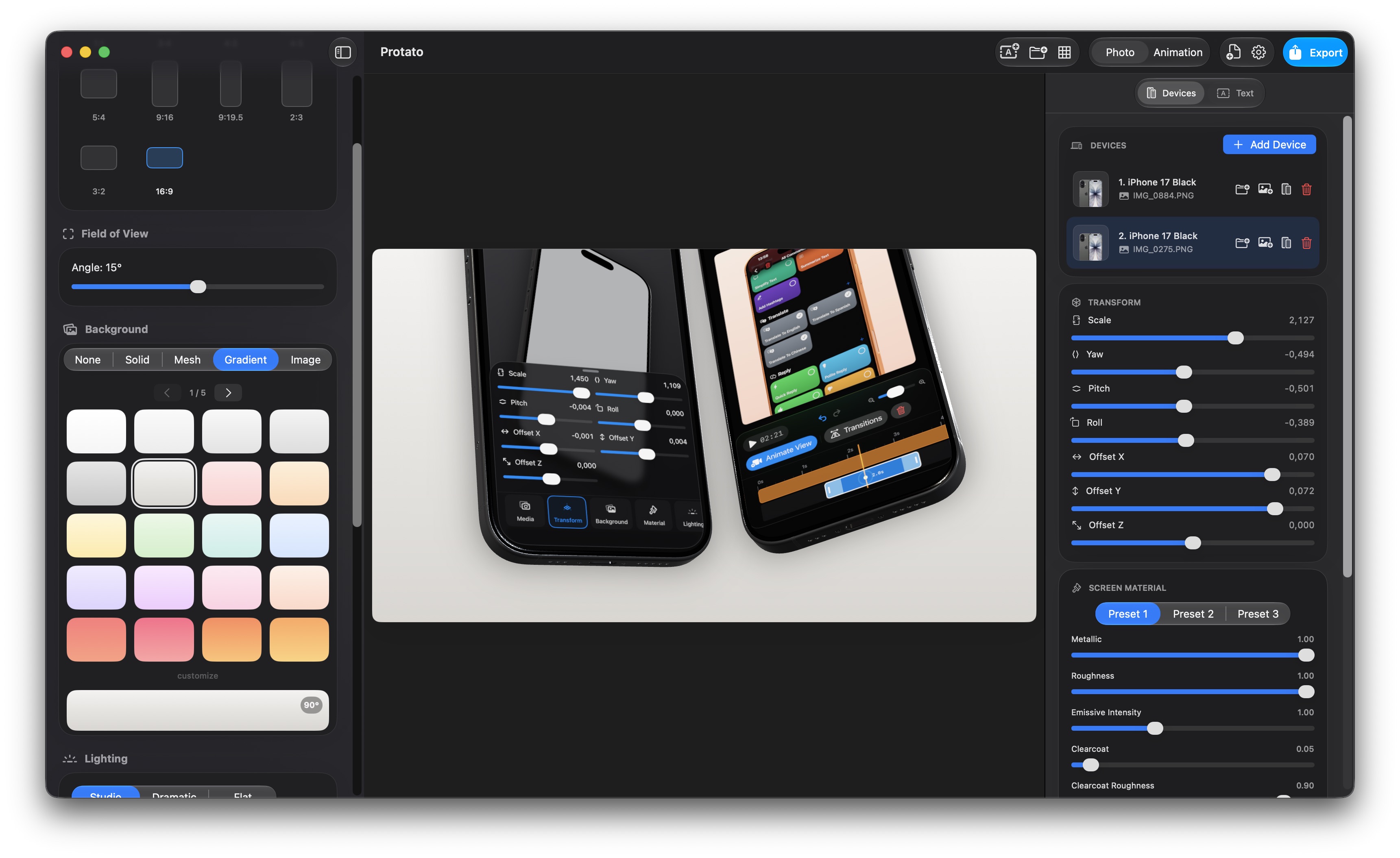
On Mac: In the right inspector (Devices mode), click the + button below the device list. A sheet opens where you can choose the next model — pick an iPad A16 or iPhone 17 Pro Max color variant.
On iPhone: Tap the Devices button (phone icon above the canvas), then tap + to add another device.
Each new device appears in the scene with its own position, rotation, and screen content. They stack on top of each other initially — you will arrange them next.
Step 03
Position each device using transform controls.
Select a device by tapping it on the canvas or clicking it in the device list. In the Transform section, adjust:
- Scale — make secondary devices smaller to create depth (e.g., iPad A16 at 0.8x, MacBook Pro 14" at 0.6x)
- Yaw — rotate devices slightly toward each other for a natural conversation layout
- Pitch — tilt devices at matching angles for a consistent look
- Offset X/Y/Z — nudge each device into its final position without moving the camera
Step 04
Import screenshots onto each device.
Select a device, open the Media tab in settings, and import a screenshot. Each device can show a different screen — use this to highlight different features or views of your product.
On Mac, you can import screenshots directly from your device or from files by clicking the upload file button
Step 05
Adjust the lighting and export.
Fine-tune how light hits each device using the Lighting section in the left sidebar. Choose from presets like Studio (balanced), Dramatic (strong contrasts), or Flat (even, soft). Adjust individual lights — Key, Fill, Rim, and Back — using sliders from 0 to 10,000, and tweak the global exposure multiplier.
For realistic reflections, enable IBL (Image-Based Lighting) which adds a virtual studio environment. This makes all devices in your scene look consistent and professional.
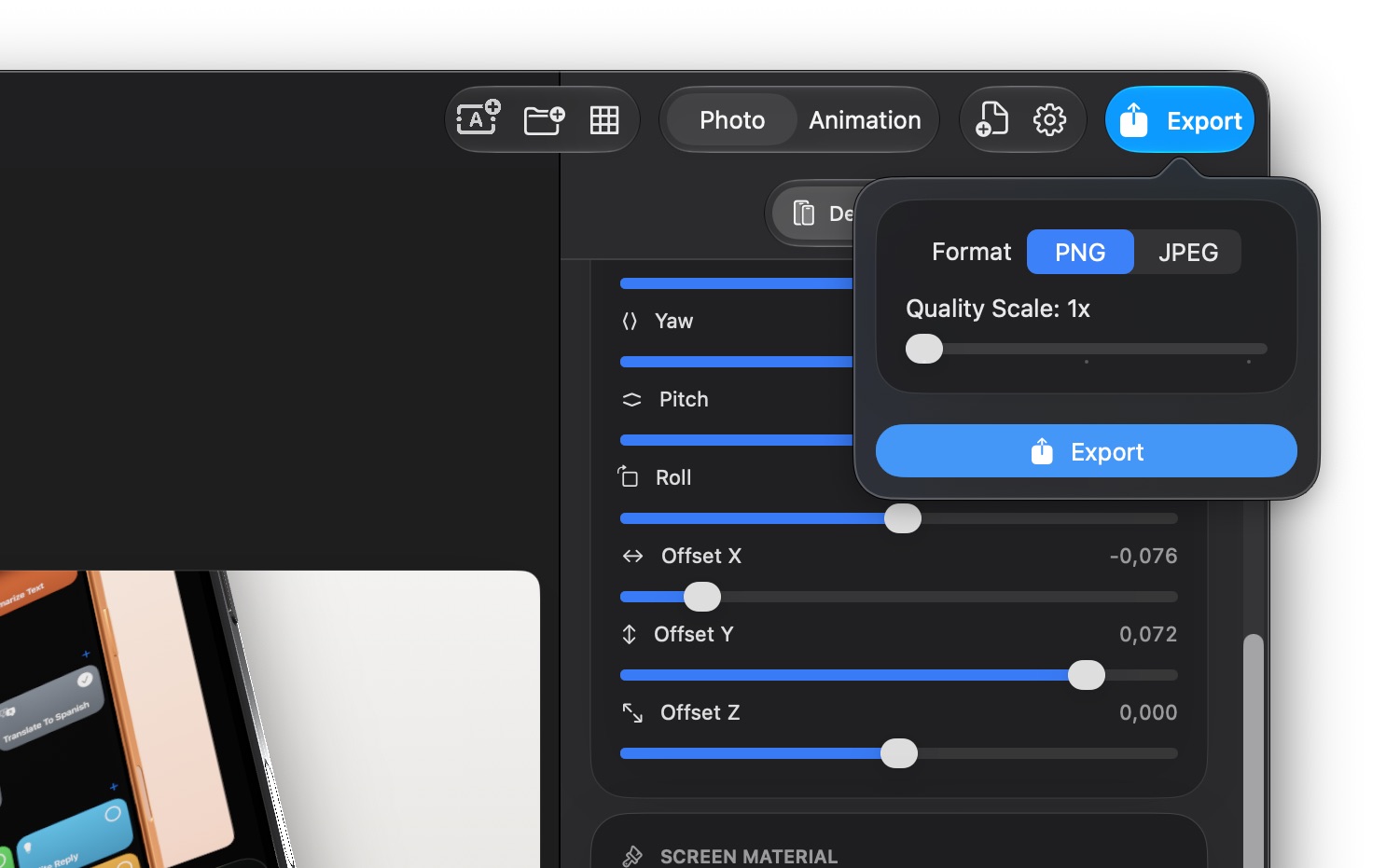
Once the lighting looks right, click the Export button in the toolbar. Choose PNG for transparency (useful if you want to composite the scene later) or JPEG for a ready-to-use file. Select quality scale (1×, 2×, or 3×) for sharper output.
The result is a single, polished multi-device hero shot — perfect for landing pages, pitch decks, or ecosystem marketing.
Continue
Take the scene further.
How to create a product reveal video with keyframe animation.
Animate the multi-device scene — orbit between devices to create a cinematic product family reveal.
How to polish your mockup with studio lighting and materials.
Make every device in the scene look consistent with shared lighting presets and material tweaks.
How to add text overlays and branding to your mockups.
Label each device in a multi-device scene with feature callouts and add a hero headline that anchors the entire scene.
How to make an app promo video in minutes.
Create a cinematic promo video with keyframe animation, camera orbits, and timed text overlays.