How to make App Store screenshots that convert.
Strong App Store screenshots make the benefit of your app obvious before someone taps Download. This step-by-step workflow turns a raw screen capture into a clear, polished screenshot set—with the right device framing, message hierarchy, and export settings for App Store Connect.
What you'll build
One clean device mockup with your screenshot on a 3D iPhone frame, a background treatment, a headline, and an export-ready image.
What you'll use
Project creation, device model picker, aspect ratio, background styling, media import, text overlays, and still image export.
If you want the setup path in the app now, open Protato on your iPhone or install it on your Mac to follow along.
Before you start
Pick the story your screenshot set needs to tell.
Treat each screenshot as one small promise, not a collage of every feature. Start with the highest-value outcome your app delivers, then choose the screen that proves it. Your first two or three images matter most because they are the ones people are most likely to see in search and on your product page.
- Lead with the outcome: write a short benefit-led headline, then choose a screen that makes the claim believable.
- Keep one focal point: avoid tiny UI, competing labels, or several unrelated features in one frame.
- Build a sequence: introduce the core value, show the key interaction, then use later frames for proof or secondary features.
Step 01
Create a new project and choose a device model.
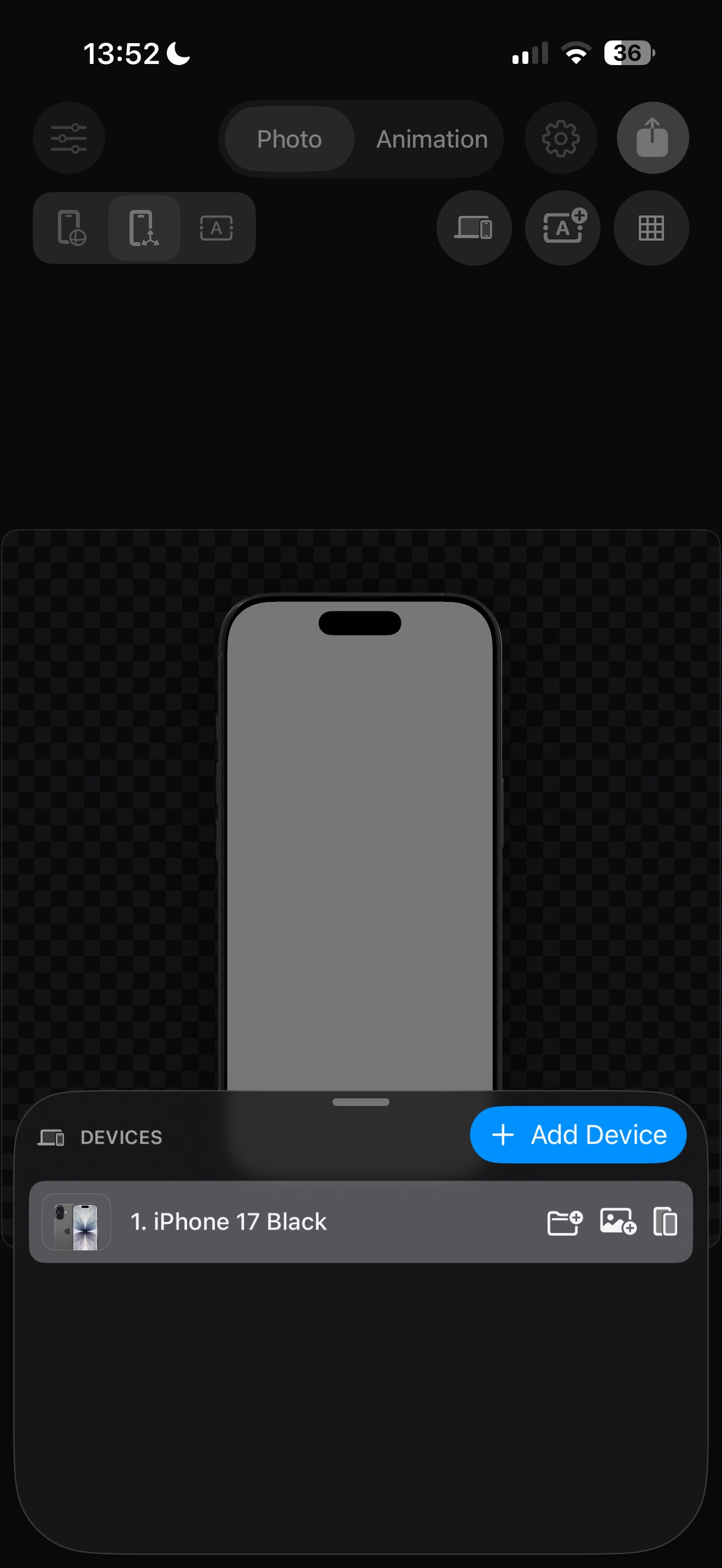
Open Protato and you will see the default scene with a device already loaded. By default it shows the latest iPhone model — this is your starting anchor.
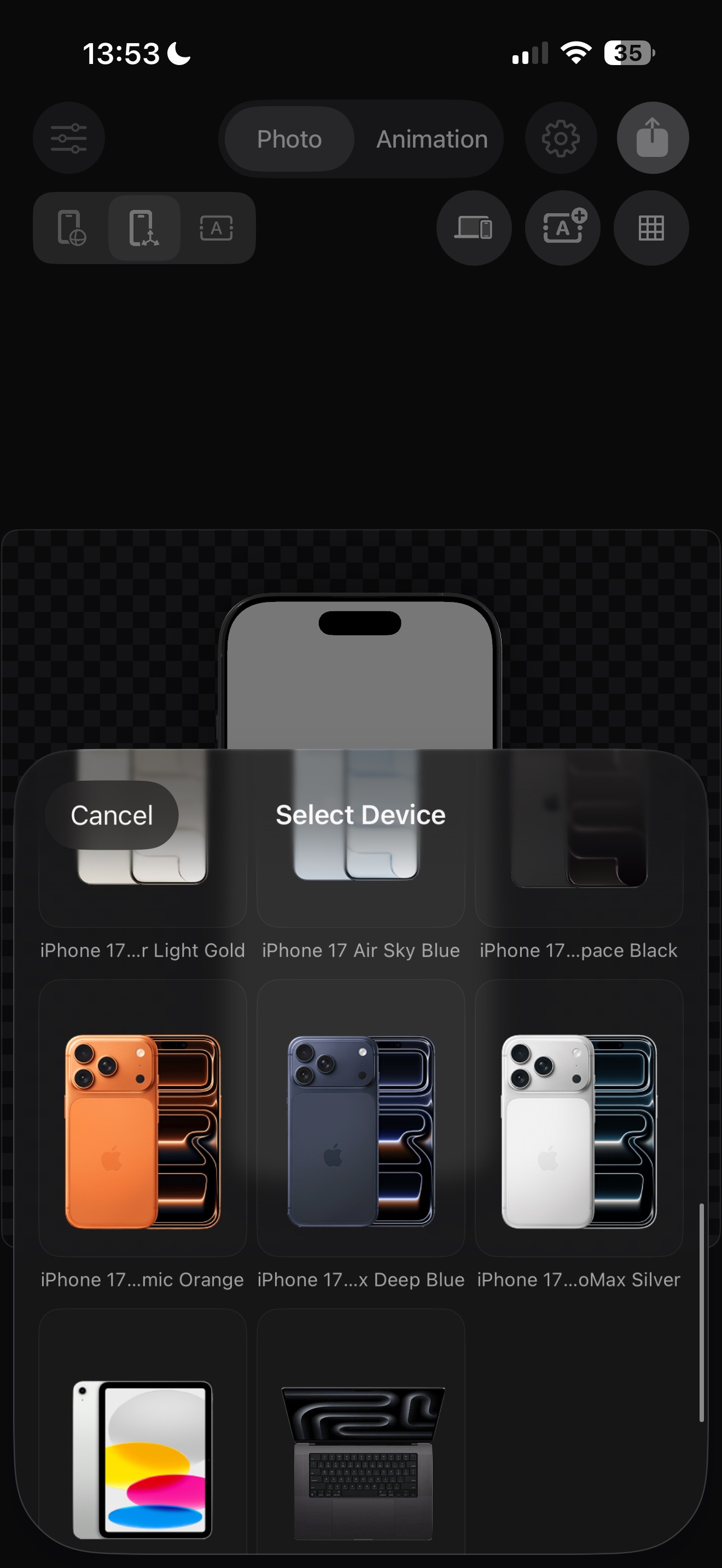
If you want a different device, tap the Devices button (phone icon above the canvas), then use the + and — buttons to swap models. Choose from iPhone 17 Pro Max, iPhone 17 Air, iPad A16, MacBook Pro 14", and more.
For a first tutorial, the iPhone frame is the clearest path because it matches the most common App Store screenshot workflow.
Step 02
Set the canvas size and choose a background.
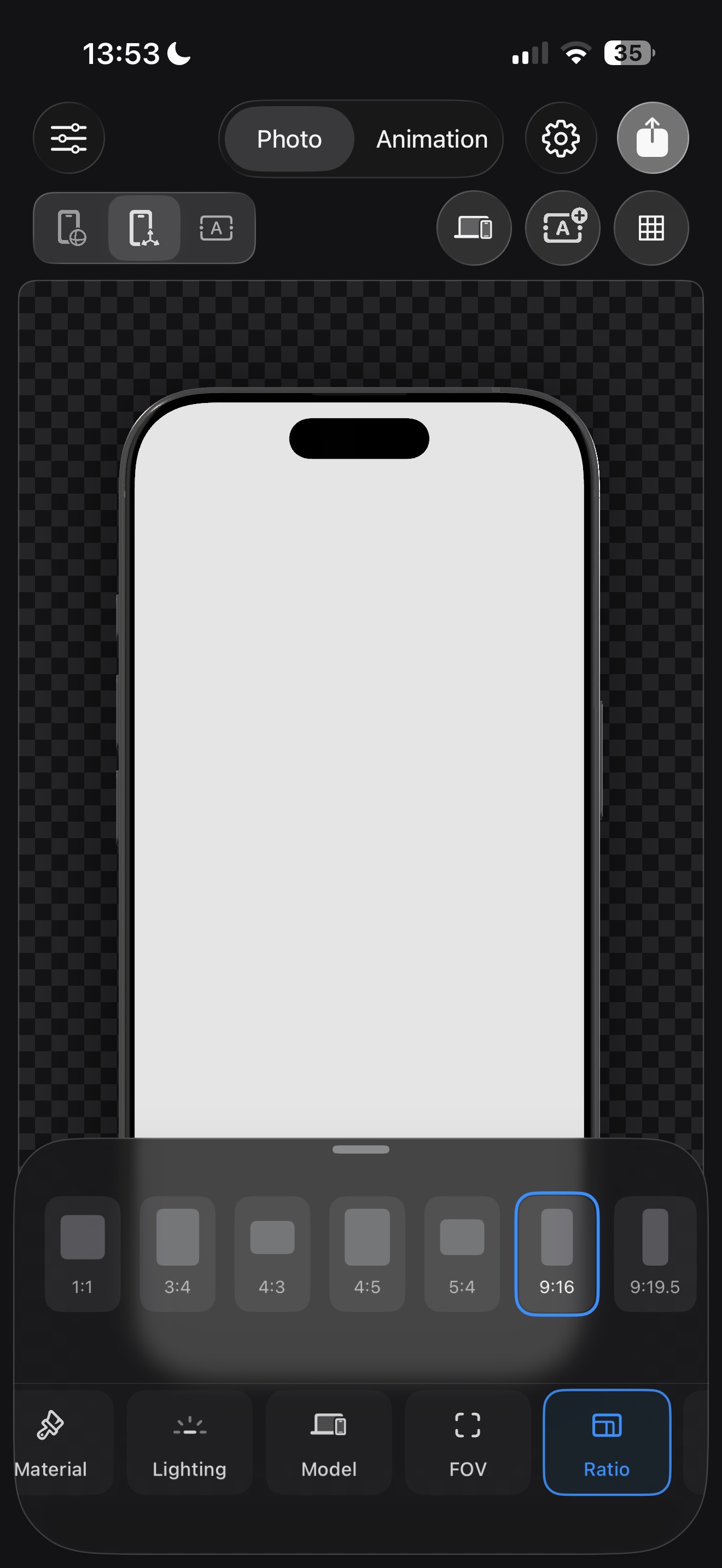
Open the Settings sheet (sliders icon in the top-left toolbar) and go to the Ratio tab. Pick a canvas shape that matches your target output — 9:16 for social stories, 16:9 for widescreen, or 1:1 for square.
Next, go to the Background tab. Choose a starting background:
- None — leaves the background transparent for a clean PNG export
- Solid — pick a single brand color from the palette or color wheel
- Gradient — choose from 80+ two-color presets or create your own
- Mesh — smooth multi-color blended gradients for an Apple-style look
- Image — use a photo from your library as the backdrop
Step 03
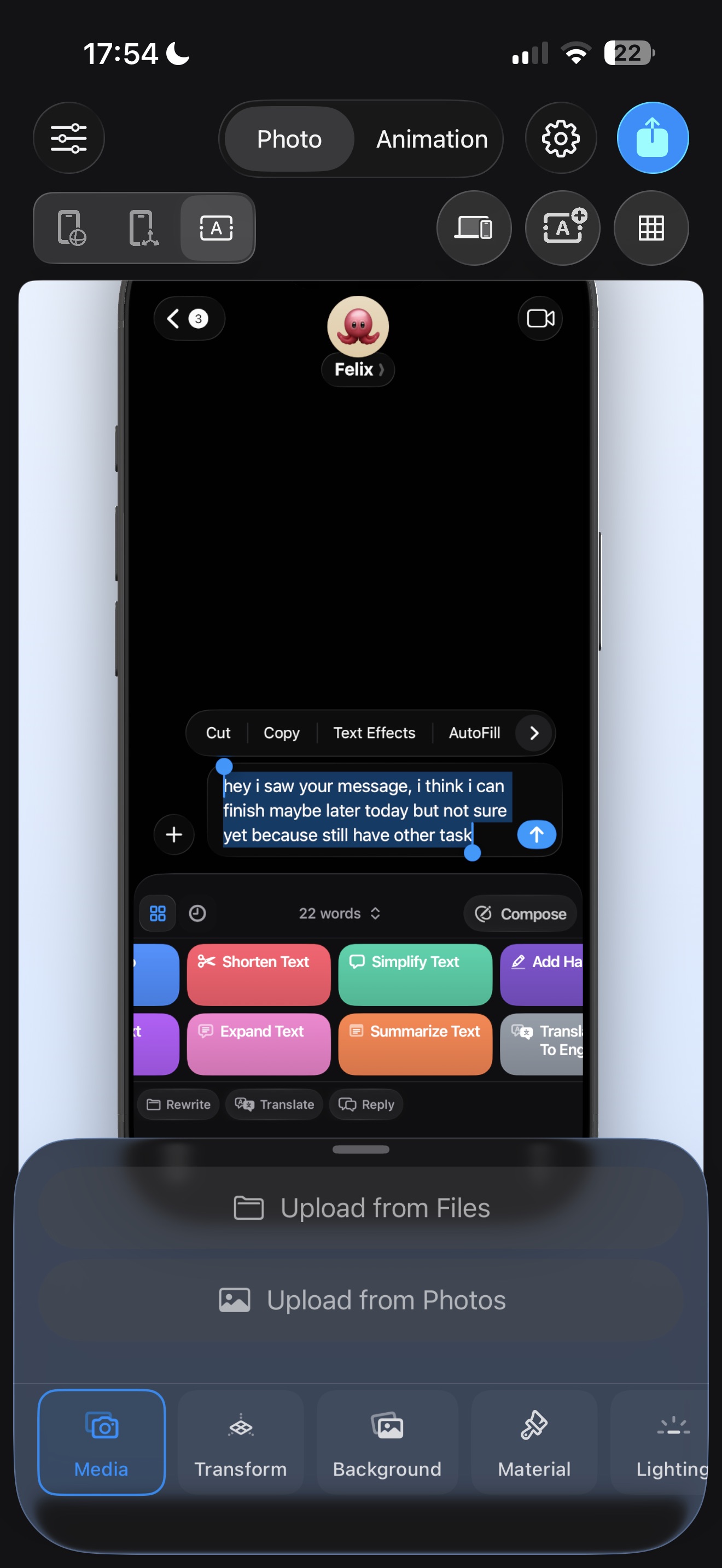
Import your screenshot and fit it onto the device.
Still in the Settings sheet, go to the Media tab. Tap the import button and choose your app screenshot from Photos or Files.
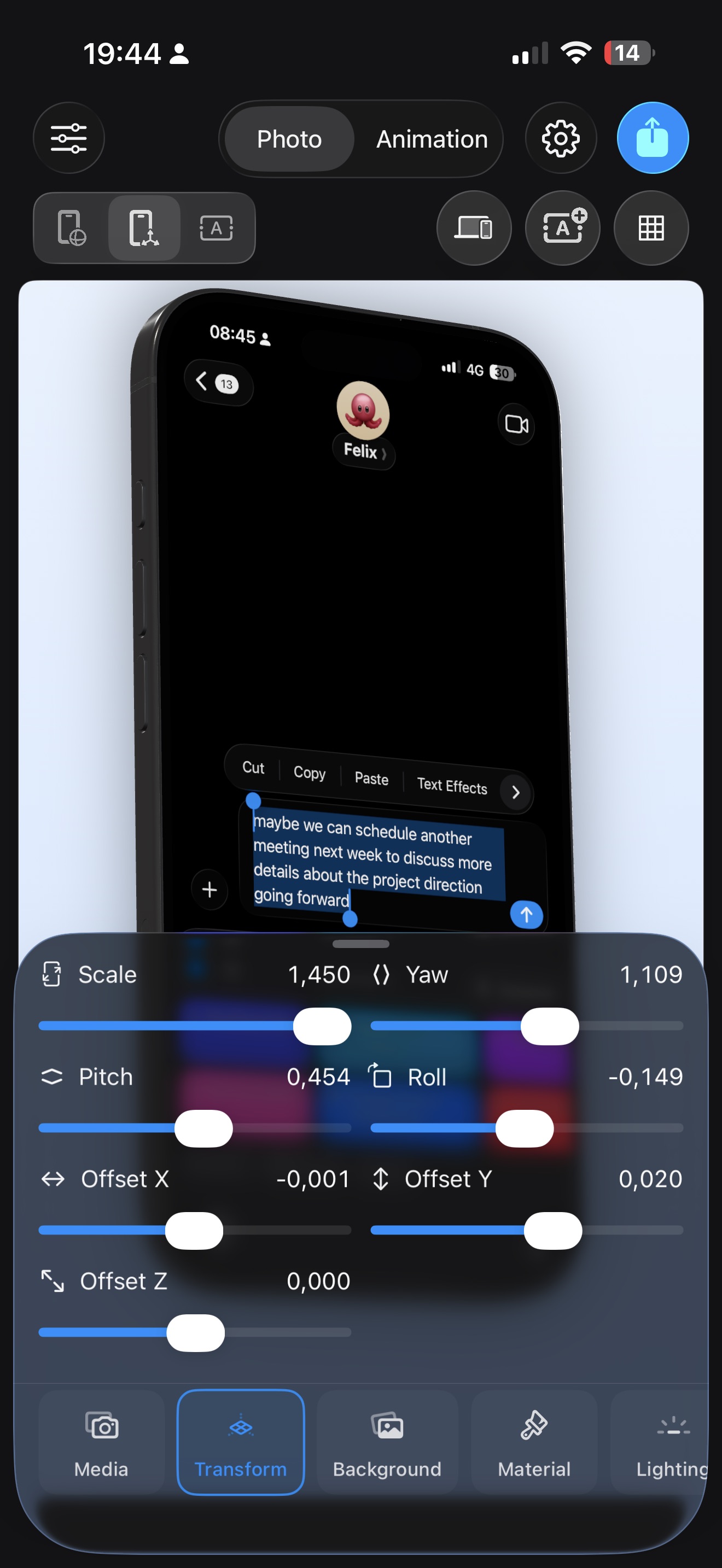
The image appears on the device screen instantly — curved to match the display, with realistic reflections and perspective. If the crop doesn't look right, adjust the device's position using Pan mode or the Transform tab.
This is where the project stops being a blank template and starts becoming a usable marketing asset.
Step 04
Add the headline and supporting copy.
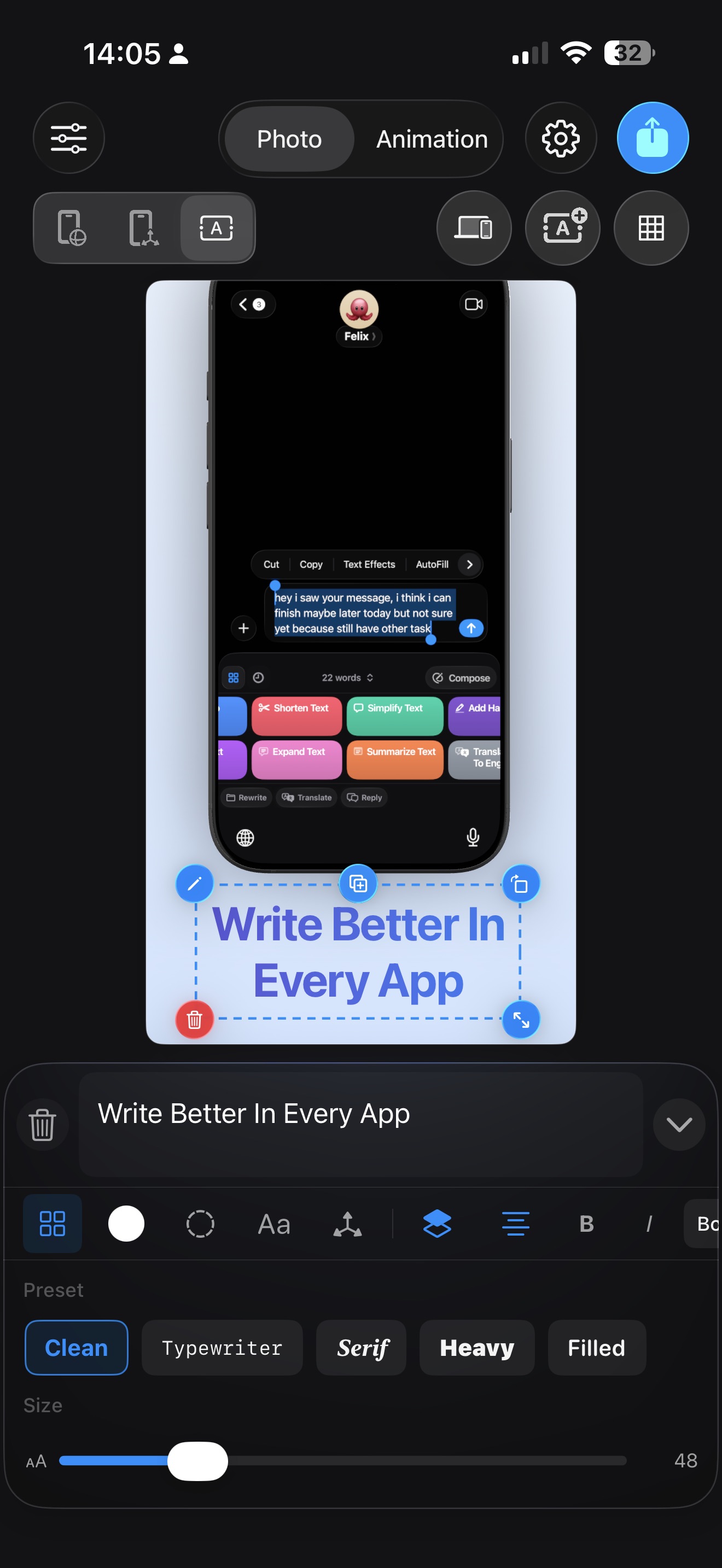
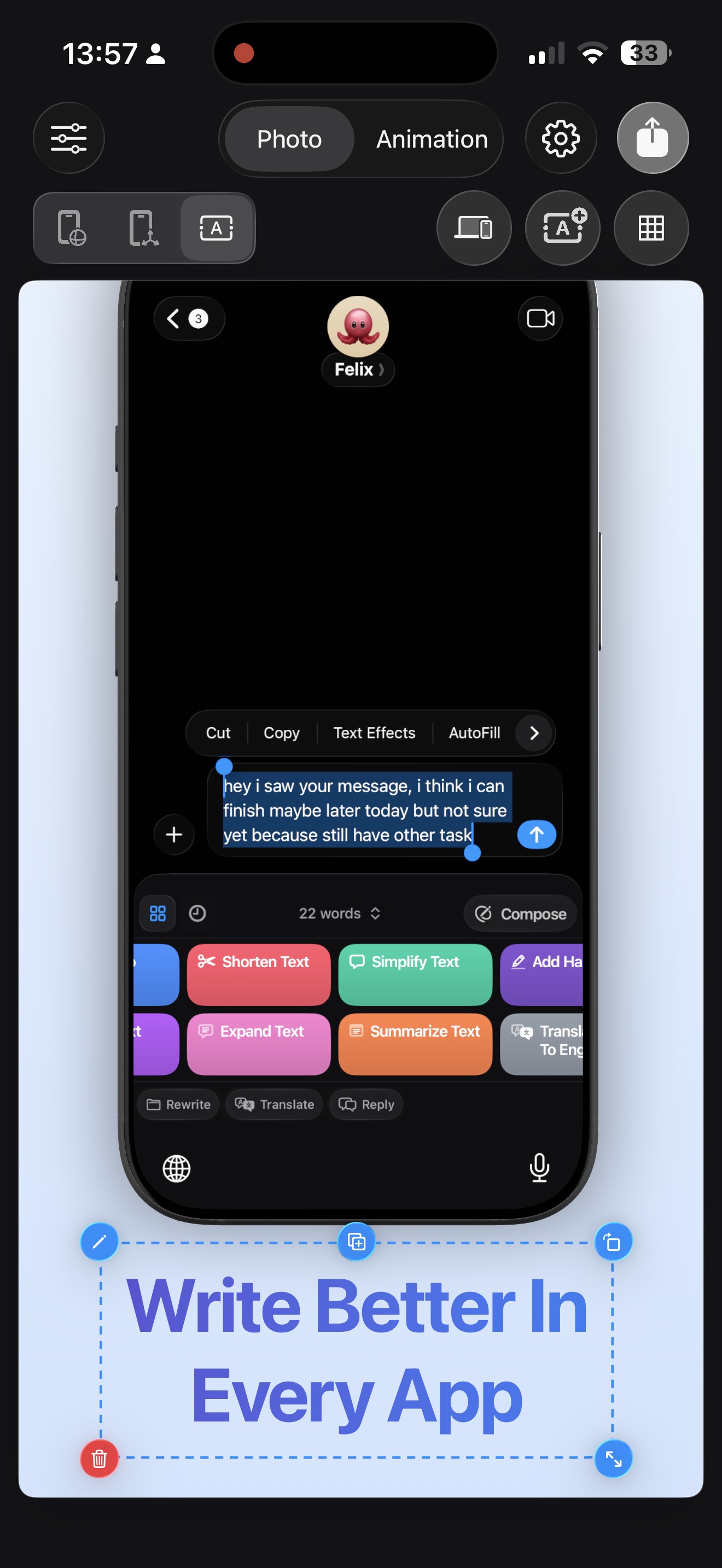
Tap the Add Text button (T+ icon) above the canvas. A text label appears and the Text Editor panel slides up from the bottom.
Tap the text directly on the canvas and type your headline — something that describes the benefit shown in the screenshot.
In the Text Editor, explore the tabs:
- Presets — quick font size and style presets
- Color — solid fill or multi-stop gradient for the text
- Stroke — add an outline around your text
- Style — choose from System, Rounded, Serif, or Monospaced fonts; adjust weight, alignment, and tracking
- Layout — position the text on screen, scale it, rotate it, and choose whether it appears behind or in front of the device
Step 05
Refine spacing, hierarchy, and layer placement.
Tighten the composition by switching between the Orbit and Pan modes to adjust the camera angle and device position.
If you added multiple text elements, use the Layout tab's placement setting to order them — text behind the device creates depth, text in front reads as a clear headline.
Toggle the Grid overlay (⊞ icon) to check alignment. Make sure the device, text, and background feel balanced as a single composition.
Step 06
Export the finished still image.
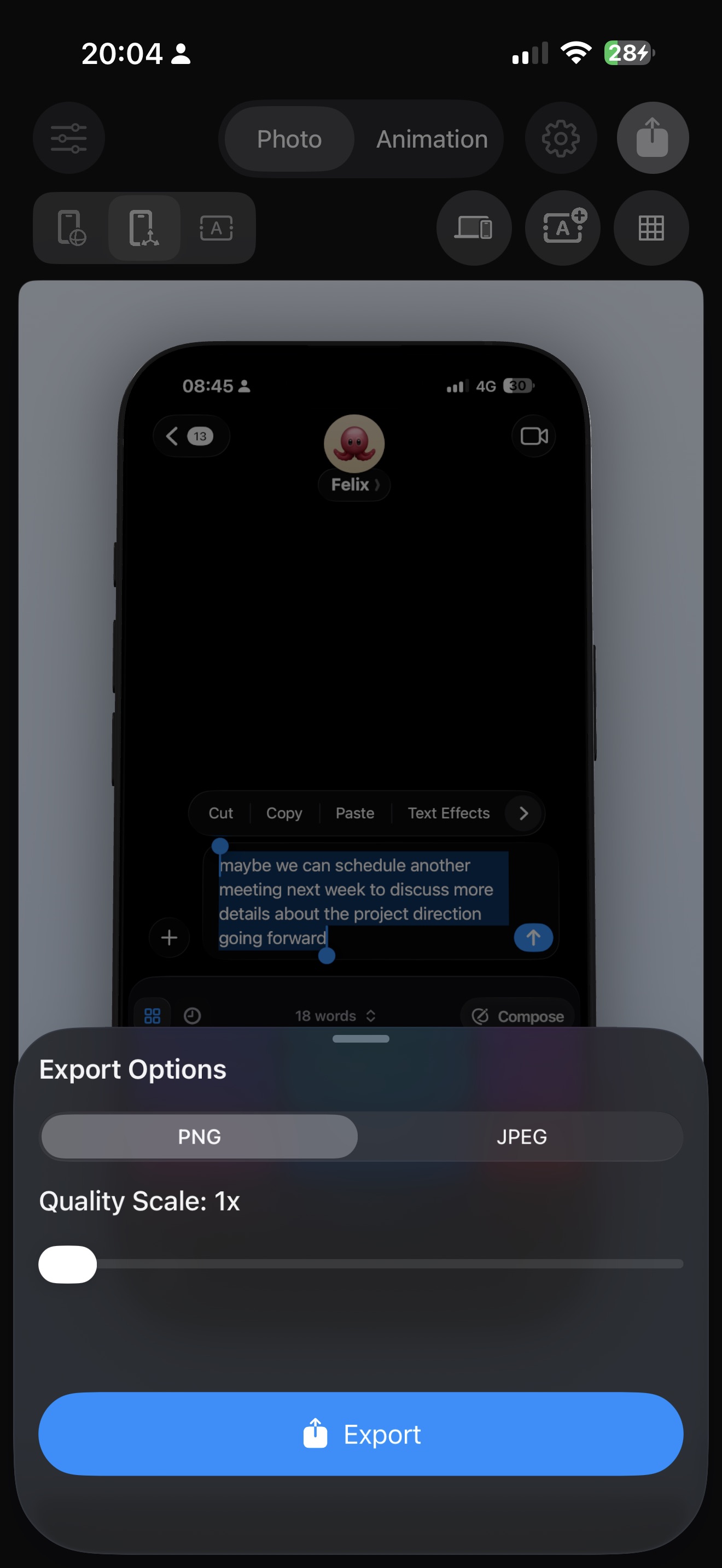
Tap the Export button (arrow-up icon in the top toolbar). Choose your format — PNG for transparent backgrounds, JPEG for smaller file sizes.
Select the quality scale: 1x, 2x, or 3x. Higher scales produce sharper, larger images suitable for App Store and print.
Tap Export. The iOS Share Sheet appears — save to Photos, send in Messages, AirDrop to your Mac, or upload directly to App Store Connect.
This closes the loop on your first project. The same project can now grow into a full screenshot set, a localization pass, or an animated variant.
Step 07
Verify your screenshot sizes and upload to the store.
Before uploading, check that your exported image matches the required dimensions for your target device. Apple now only requires the 6.9-inch iPhone size (1320 × 2868 px) — it scales down automatically for smaller models.
- iPhone 6.9" (primary) — 1320 × 2868 px
- iPhone 6.7" (legacy) — 1290 × 2796 px
- iPad Pro 13" — 2064 × 2752 px
- Format — PNG, RGB, no alpha channel, under 8 MB
- App Store Connect — My Apps → version → Previews and Screenshots → 6.9" tab → drag files in order
- Google Play Console — Store presence → Main store listing → upload phone & tablet sets
Your first 2-3 screenshots appear in App Store search results. Put your strongest frame first. For the full size reference with every device class, see the App Store Screenshot Sizes guide.
Continue
Keep the workflow moving.
How to make a polished iPhone mockup from a raw screenshot.
Take the same foundation and refine lighting, materials, and composition for a premium single-image deliverable.
How to build a full App Store screenshot set in one project.
Expand the same project model into a complete campaign set instead of stopping at one canvas.
Project presets for first-time App Store screenshot setups.
See the feature page behind project creation, default frames, and canvas options used in this guide.